Mastering Proactive Device Health Monitoring: Ensuring Reliability and Uptime in Home Assistant

NGC 224
DIY Smart Home Creator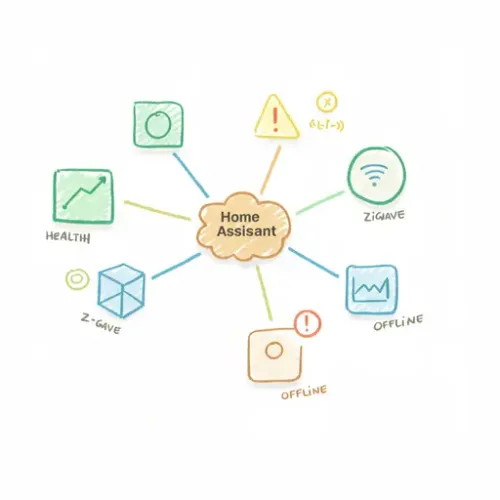
The Silent Threat: Why Proactive Device Health Monitoring Matters
Imagine this: your smart home runs flawlessly for months, but suddenly, a critical motion sensor stops triggering, or a smart lock fails to respond. Often, these issues stem from a dead battery, a device losing network connectivity, or an integration becoming unresponsive. The challenge with a growing smart home is identifying these failures *before* they impact your automations or, worse, compromise your home's security or convenience.
While Home Assistant provides basic device states, a unified, proactive health monitoring system is crucial for a truly reliable smart home. This guide will walk you through implementing advanced monitoring techniques for battery life, network connectivity, and integration availability across various protocols like Zigbee, Z-Wave, Wi-Fi, and ESPHome. We'll leverage Home Assistant's powerful templating engine, built-in integrations, and automation capabilities to create a robust system that alerts you to problems and even suggests solutions, turning reactive troubleshooting into proactive maintenance.
Understanding Core Device Health Metrics in Home Assistant
Before diving into configuration, let's define the key health metrics we'll be tracking:
- Battery Status: Crucial for wireless sensors, remotes, and locks. We want to know when battery levels drop below a critical threshold.
- Connectivity: Is a Wi-Fi device online? Is a Zigbee device communicating with its coordinator? Is your ESPHome device connected to the API?
- Integration Availability/Uptime: Are critical integrations (e.g., Zigbee2MQTT, Z-Wave JS UI) running and healthy? Is Home Assistant itself running as expected?
Step-by-Step: Unifying Battery Monitoring with Template Sensors
Different devices report battery levels in various ways. Home Assistant often creates a sensor.device_battery entity. We can unify these and create a single 'low battery' status for a group of devices.
1. Identify Battery Entities
Go to Developer Tools > States and filter by battery to see all your battery sensors. Note down their entity IDs (e.g., sensor.motion_sensor_bathroom_battery).
2. Create a Low Battery Threshold Template Sensor
Add the following to your configuration.yaml or a dedicated sensors file:
# configuration.yaml

sensor:
  - platform: template
    sensors:
      all_low_batteries:
        friendly_name: "Any Device with Low Battery"
        value_template: >
          {% set low_battery_threshold = 15 %}
          {% set low_batteries = [] %}
          {% if states('sensor.motion_sensor_bathroom_battery') | int <= low_battery_threshold %}
            {% set low_batteries = low_batteries + ['Bathroom Motion Sensor'] %}
          {% endif %}
          {% if states('sensor.door_sensor_main_battery') | int <= low_battery_threshold %}
            {% set low_batteries = low_batteries + ['Main Door Sensor'] %}
          {% endif %}
          {% if low_batteries | length > 0 %}
            {{ low_batteries | join(', ') }}
          {% else %}
            "None"
          {% endif %}
        icon_template: >
          {% if states('sensor.all_low_batteries') != 'None' %}
            mdi:battery-alert
          {% else %}
            mdi:battery-check
          {% endif %}
        # Optional: Add attributes for individual devices to show their battery percentage
        attribute_templates:
          bathroom_motion_battery: "{{ states('sensor.motion_sensor_bathroom_battery') }}"
          main_door_battery: "{{ states('sensor.door_sensor_main_battery') }}"
Reload Template Entities or restart Home Assistant. You'll now have a sensor.all_low_batteries that lists devices needing attention.
Step-by-Step: Monitoring Wi-Fi Device Connectivity with `ping`
For critical Wi-Fi devices (e.g., security cameras, smart plugs, ESPHome devices not using the API), the ping integration is invaluable.
1. Configure the Ping Integration
Add the following to your configuration.yaml:
# configuration.yaml

ping:
  - host: 192.168.1.100  # Replace with your device's static IP
    name: "Smart Plug Living Room Connectivity"
    scan_interval: 60  # Check every 60 seconds
  - host: 192.168.1.101
    name: "Security Camera Front Door Connectivity"
    scan_interval: 30
Restart Home Assistant. This creates binary sensors like binary_sensor.smart_plug_living_room_connectivity which will be on (connected) or off (disconnected).
Important: Ensure your devices have static IP addresses or DHCP reservations to prevent their IPs from changing.
Step-by-Step: Leveraging Integration-Specific Health Data
Many integrations provide specific sensors or attributes for device health.
1. Zigbee2MQTT Device Availability
Zigbee2MQTT exposes an availability sensor for each device, typically binary_sensor.DEVICE_NAME_availability. It also provides link_quality (LQI) as sensor.DEVICE_NAME_link_quality which is a good indicator of signal strength.
You can create template sensors to aggregate these:
# sensors/zigbee_health.yaml (include this in configuration.yaml)

sensor:
  - platform: template
    sensors:
      zigbee_weak_signals:
        friendly_name: "Zigbee Weak Signals"
        value_template: >
          {% set weak_signal_threshold = 50 %}
          {% set weak_signals = [] %}
          {% if states('sensor.zigbee_sensor_1_link_quality') | int <= weak_signal_threshold %}
            {% set weak_signals = weak_signals + ['Zigbee Sensor 1'] %}
          {% endif %}
          {% if states('sensor.zigbee_sensor_2_link_quality') | int <= weak_signal_threshold %}
            {% set weak_signals = weak_signals + ['Zigbee Sensor 2'] %}
          {% endif %}
          {% if weak_signals | length > 0 %}
            {{ weak_signals | join(', ') }}
          {% else %}
            "None"
          {% endif %}
        icon_template: >
          {% if states('sensor.zigbee_weak_signals') != 'None' %}
            mdi:wifi-strength-alert
          {% else %}
            mdi:wifi-strength-4
          {% endif %}
2. ESPHome API Connectivity
ESPHome devices expose an api_connected binary sensor (e.g., binary_sensor.esp_device_name_api_connected) which indicates if Home Assistant can communicate with the device. This is often more reliable than a simple ping for ESPHome devices.
Step-by-Step: Creating Unified Alerts for Device Health Issues
Now that we have health sensors, let's set up notifications.
1. Automation for Low Battery Alerts
# automations.yaml

- id: 'low_battery_notification'
  alias: 'Low Battery Notification'
  description: 'Sends a notification when any tracked device has a low battery.'
  trigger:
    - platform: template
      value_template: "{{ states('sensor.all_low_batteries') != 'None' }}"
      for:
        minutes: 10 # Only trigger if low battery persists for 10 minutes
  condition:
    # Only send notification if it hasn't been sent recently for this issue
    - condition: template
      value_template: "{{ (as_timestamp(now()) - as_timestamp(state_attr('automation.low_battery_notification', 'last_triggered') or 0)) > (4 * 3600) }}"
  action:
    - service: notify.mobile_app_your_device  # Replace with your notification service
      data:
        title: "Smart Home Alert: Low Battery!"
        message: "The following devices have low batteries: {{ states('sensor.all_low_batteries') }}. Please replace them soon!"
        data:
          tag: "low-battery-alert"
          ttl: 0
          priority: high
  mode: single
The for condition and the template condition for last_triggered help prevent spamming you with notifications.
2. Automation for Offline Device Alerts (Ping & API)
# automations.yaml

- id: 'offline_device_notification'
  alias: 'Offline Device Notification'
  description: 'Sends a notification when a critical device goes offline.'
  trigger:
    - platform: state
      entity_id: binary_sensor.smart_plug_living_room_connectivity
      to: 'off'
      for:
        minutes: 5 # Only trigger if offline for 5 minutes
    - platform: state
      entity_id: binary_sensor.esp_device_name_api_connected
      to: 'off'
      for:
        minutes: 2 # ESPHome often reconnects faster
  condition:
    # Similar condition to prevent repeat notifications within a timeframe
    - condition: template
      value_template: "{{ (as_timestamp(now()) - as_timestamp(state_attr('automation.offline_device_notification', 'last_triggered') or 0)) > (1 * 3600) }}"
  action:
    - service: notify.mobile_app_your_device
      data_template:
        title: "Smart Home Alert: Device Offline!"
        message: >
          {% if trigger.entity_id == 'binary_sensor.smart_plug_living_room_connectivity' %}
            The Living Room Smart Plug appears to be offline.
          {% elif trigger.entity_id == 'binary_sensor.esp_device_name_api_connected' %}
            Your ESPHome device '{{ states(trigger.entity_id).name }}' is disconnected from Home Assistant.
          {% else %}
            An unknown device is offline.
          {% endif %}
        data:
          tag: "offline-device-alert"
          ttl: 0
          priority: high
  mode: single
Troubleshooting Common Monitoring Issues
-
Ping Sensor Always 'off':
- Device Firewall: Many devices (especially IoT) have firewalls. Ensure ICMP (ping) requests are allowed on the target device.
- Device Sleeping: Some devices enter deep sleep modes where they don't respond to pings. Consider `MQTT Last Will and Testament` for MQTT devices or API checks for ESPHome instead.
- Incorrect IP Address: Double-check the IP. Use `nmap` or your router's client list to confirm.
- Network Issues: Test ping from another machine on the same network as Home Assistant.
-
Template Sensor Errors:
- Missing Entity: Ensure all entity IDs in your
value_templateexist. Check for typos. - Invalid Value Conversion: If using
| intor| float, ensure the input state is indeed a number or can be converted. - Indentation Errors: YAML is whitespace-sensitive. Use a YAML linter.
- Developer Tools > Templates: Use the Home Assistant Developer Tools > Template editor to test your templates iteratively.
- Missing Entity: Ensure all entity IDs in your
-
Notifications Not Sending:
- Notification Service Correct: Verify your
notify.mobile_app_your_deviceor other notification service is correctly configured and working for basic messages. - Condition Not Met: Check the automation's conditions. Is the
last_triggeredlogic preventing it? - Trigger Not Firing: Does the sensor actually reach the 'off' state, or go below the threshold?
- Notification Service Correct: Verify your
Advanced Configuration & Optimization: The Device Health Dashboard
A unified dashboard provides a quick overview of your smart home's health.
1. Create a `group` for All Low Battery Devices
For simpler UI representation, you can use a group helper or an entity filter card.
# groups.yaml (include this in configuration.yaml)

group:
  critical_battery_devices:
    name: "Critical Battery Devices"
    entities:
      - binary_sensor.motion_sensor_bathroom_low_battery # if you have individual low battery binary sensors
      - binary_sensor.door_sensor_main_low_battery
    all: false # if any are on, group is on
Then, create individual binary sensors for low battery based on your template sensor:
binary_sensor:
  - platform: template
    sensors:
      motion_sensor_bathroom_low_battery:
        friendly_name: "Bathroom Motion Low Battery"
        value_template: "{{ states('sensor.motion_sensor_bathroom_battery') | int <= 15 }}"
        device_class: battery
This allows you to group them, or use an Entity Filter card in Lovelace:
type: entity-filter
entities:
  - sensor.motion_sensor_bathroom_battery
  - sensor.door_sensor_main_battery
state_filter:
  - operator: <=
    value: 15
card:
  type: entities
  title: Low Battery Devices
2. Dashboard Cards
- Entities Card: Display
sensor.all_low_batteries,sensor.zigbee_weak_signals. - Glance Card: Quick status of critical
binary_sensor.ping_...andbinary_sensor.api_connectedentities. - Custom Button Card / State Switch: Visually highlight issues.
- Conditional Card: Show a warning message only if issues exist.
3. Automated Self-Healing (Use with Caution!)
For some devices, a simple power cycle can resolve connectivity issues. If you have smart plugs controlling Wi-Fi devices, you can automate a reboot:
# automations.yaml

- id: 'reboot_offline_camera'
  alias: 'Reboot Front Door Camera if Offline'
  description: 'Reboots the front door camera via smart plug if it goes offline.'
  trigger:
    - platform: state
      entity_id: binary_sensor.security_camera_front_door_connectivity
      to: 'off'
      for:
        minutes: 10 # Offline for 10 minutes
  condition:
    # Only try to reboot if it hasn't been rebooted recently
    - condition: template
      value_template: "{{ (as_timestamp(now()) - as_timestamp(state_attr('automation.reboot_offline_camera', 'last_triggered') or 0)) > (6 * 3600) }}"
  action:
    - service: switch.turn_off
      entity_id: switch.front_door_camera_power_plug # The smart plug controlling the camera
    - delay:
        seconds: 10
    - service: switch.turn_on
      entity_id: switch.front_door_camera_power_plug
    - service: notify.mobile_app_your_device
      data:
        title: "Smart Home Action: Camera Rebooted"
        message: "Front Door Camera was offline and has been power cycled. Monitoring for reconnection."
  mode: single
Warning: Only automate reboots for devices that can handle unexpected power cuts without damage or data corruption.
Real-World Scenario: Securing Your Home with Proactive Sensor Monitoring
Consider a critical security setup: a set of Zigbee door/window sensors, a Wi-Fi camera, and an ESPHome motion sensor.
-
Battery Monitoring: All Zigbee sensors have
sensor.zigbee_door_batteryentities. We aggregate them intosensor.all_low_batteriesand get actionable notifications.
Benefit: No surprises, replace batteries before they die and leave a door unprotected. -
Connectivity Monitoring: The Wi-Fi camera is pinged (
binary_sensor.camera_connectivity). The ESPHome motion sensor'sbinary_sensor.esp_motion_api_connectedis monitored. The Zigbee sensors implicitly report availability via Zigbee2MQTT (and LQI).
Benefit: Immediately know if a security camera drops off the network or if a critical motion sensor stops communicating with HA. -
Automated Action & Alerts:
- If
binary_sensor.camera_connectivitygoesofffor >10 minutes, trigger an automation to reboot its smart plug and send a critical notification. - If
sensor.all_low_batterieslists a security sensor, send a persistent notification to the dashboard and a high-priority mobile alert. - If a Zigbee sensor's
link_qualitydrops below 20 for an extended period, send an alert suggesting the sensor might need relocation or a new router.
- If
Best Practices for a Resilient Smart Home
-
Consistent Naming: Use clear and consistent entity IDs and friendly names (e.g.,
sensor.living_room_motion_battery) to easily identify devices in templates and automations. -
YAML Structure: Organize your configuration with packages or split configurations (e.g.,
sensors/health.yaml,automations/alerts.yaml) for readability and maintainability. - Backup Your Configuration: Regularly back up your entire Home Assistant configuration (e.g., with Git or the Home Assistant Google Drive Backup add-on). This is crucial for recovery.
- Test Your Alerts: Don't just set them and forget them. Periodically test your low battery alerts (e.g., by temporarily lowering the threshold) and offline device alerts.
-
Review Scan Intervals: Be mindful of how frequently you poll devices (e.g.,
ping). Too frequent can cause network congestion or unnecessary device wake-ups for battery-powered devices. Balance responsiveness with resource usage. - Battery Management: When you replace batteries, update your records (if any) and consider using rechargeable batteries where practical and supported by the device.
- Network Stability: A stable network is the foundation. Ensure your Wi-Fi is robust, your Zigbee/Z-Wave meshes are healthy (e.g., enough mains-powered repeaters), and devices have good signal strength.
Conclusion
Moving beyond basic automations, proactive device health monitoring is a cornerstone of a truly reliable and resilient Home Assistant setup. By leveraging Home Assistant's flexible templating engine, diverse integrations, and powerful automation capabilities, you can build a system that not only reacts to events but anticipates potential failures. Investing time in these monitoring strategies will save you countless hours of troubleshooting, ensure your automations always run as expected, and provide invaluable peace of mind for your smart home.
NGC 224
Author bio: DIY Smart Home Creator
