Mastering Local LLM Integration: Privacy-First Conversational AI for Home Assistant

NGC 224
DIY Smart Home Creator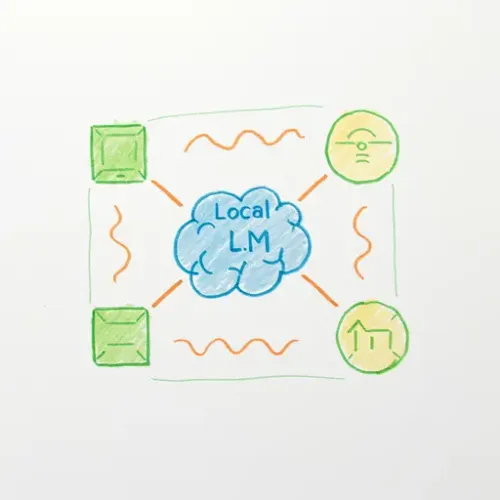
Introduction: Reclaiming Your Smart Home's Intelligence with Local LLMs
The allure of a voice-controlled smart home is undeniable, yet many tech enthusiasts and privacy-conscious homeowners find themselves hesitant to embrace cloud-dependent assistants. Concerns over data privacy, internet reliance, and the limitations of predefined commands often overshadow the convenience. Imagine a smart home that truly understands natural language, processes complex requests contextually, and operates entirely offline. This isn't a distant dream; it's achievable today by integrating local Large Language Models (LLMs) with Home Assistant.
This guide dives deep into setting up a local LLM inference server, specifically using Ollama, and leveraging it within Home Assistant to create advanced, privacy-first conversational automations. We'll move beyond simple 'turn on the lights' commands to a system capable of interpreting intent, managing context, and executing sophisticated multi-step actions, all while keeping your data securely within your local network. For those who love tinkering with powerful, self-hosted solutions, this unlocks a new dimension of smart home control.
Step-by-Step Setup
1. Setting Up Your Local LLM Server with Ollama
Ollama provides an incredibly easy way to run open-source LLMs locally. You'll need a machine with sufficient RAM (8GB+ for smaller models, 16GB+ recommended) and ideally a GPU for faster inference. We'll assume a Linux-based server (e.g., a dedicated mini PC, Raspberry Pi 5 with enough RAM, or an existing Home Assistant server if resources permit).
Installation:
First, install Ollama:
curl -fsSL https://ollama.com/install.sh | shNext, download an LLM model. For initial testing, 'llama2' is a good balance of size and capability. For more nuanced smart home control, consider 'mistral' or 'phi3'.
ollama pull llama2Once pulled, you can test it:
ollama run llama2 "Tell me a fun fact about smart homes."The Ollama server runs in the background, listening on localhost:11434 by default. Ensure this port is accessible from your Home Assistant instance, or run Home Assistant and Ollama on the same host.
2. Integrating Ollama with Home Assistant via RESTful Commands and Templates
Home Assistant can interact with Ollama's API using rest_command and a template sensor to process responses. This setup allows Home Assistant to send prompts and receive parsed answers.
configuration.yaml Example:
# Add to configuration.yaml
rest_command:
  ollama_inference:
    url: "http://<YOUR_OLLAMA_IP>:11434/api/generate"
    method: POST
    content_type: "application/json"
    payload: >
      {
        "model": "llama2",
        "prompt": "{{ prompt }}",
        "stream": false,
        "options": {
            "num_predict": 128
        }
      }

# Create a sensor to store the LLM's response
sensor:
  - platform: template
    sensors:
      ollama_response:
        friendly_name: "LLM Response"
        value_template: "{{ states('input_text.ollama_raw_response') }}"

# Helper to temporarily store raw LLM output for parsing
input_text:
  ollama_raw_response:
    name: Ollama Raw Response
    initial: ""

# Example automation to trigger inference and store response
automation:
  - alias: "Ollama - Process User Query"
    trigger:
      - platform: state
        entity_id: input_text.user_query_for_llm # An input_text helper where user inputs text
    condition: "{{ states('input_text.user_query_for_llm') != '' }}"
    action:
      - service: rest_command.ollama_inference
        data:
          prompt: >
            You are a helpful smart home assistant. The user wants to control their home.
            Current time: {{ now().strftime('%H:%M') }}.
            Today's date: {{ now().strftime('%Y-%m-%d') }}.
            User query: {{ states('input_text.user_query_for_llm') }}.
            Your response should be concise and actionable.
      - service: input_text.set_value
        target:
          entity_id: input_text.ollama_raw_response
        data:
          value: "{{ states.sensor.ollama_response_template.attributes.response_content }}" # Assuming template sensor extracts it
      - delay: "00:00:01" # Give sensor time to update
      - service: input_text.set_value
        target:
          entity_id: input_text.user_query_for_llm
        data:
          value: "" # Clear the query after processing
Replace <YOUR_OLLAMA_IP> with the actual IP address or hostname of your Ollama server. You'll need to define an input_text.user_query_for_llm to provide input to the LLM. The ollama_raw_response input text will hold the complete LLM output, from which a template sensor can extract the relevant text.
3. Integrating Voice Input (Optional but Recommended)
While you can type commands, voice input truly shines here. For local voice-to-text (STT) and text-to-speech (TTS), consider:
-
Wyoming Protocol: Home Assistant's native local voice solution, supporting STT (e.g., Whisper) and TTS (e.g., Piper) integrations. You'd set up a satellite device (e.g., ESP32-S3 with Wyoming Satellite firmware) to capture audio, send it to a local Whisper server for transcription, and then feed that text into your LLM automation.
-
Rhasspy: A powerful, open-source voice assistant toolkit that can run entirely offline. Rhasspy can provide the transcribed text to Home Assistant via MQTT or API calls, which then gets fed to your LLM.
For this guide, we'll focus on the LLM interaction. Assume the transcribed text is available in input_text.user_query_for_llm.
Troubleshooting Section
-
Ollama Server Unreachable:
- Verify Ollama is running on the target machine:
systemctl status ollama(if installed as a service) or check `ollama ps`. - Check firewall rules on the Ollama server to ensure port 11434 is open for inbound connections from your Home Assistant instance.
- Ping the Ollama IP from Home Assistant's host to confirm network connectivity.
- Verify Ollama is running on the target machine:
-
Poor or Irrelevant LLM Responses:
- Model Choice: Llama2 might be too generic. Try 'mistral', 'phi3', or other models known for better instruction following. Pull new models with
ollama pull <model_name>. - Prompt Engineering: Your system prompt is crucial. Be explicit about the LLM's role ("You are a helpful smart home assistant..."), what information it has, and what kind of output is expected. Include current context (time, date, specific sensor states if relevant).
- Resource Constraints: If the server lacks sufficient RAM or GPU, the LLM might truncate responses or perform poorly. Check Ollama logs for warnings or errors.
- Model Choice: Llama2 might be too generic. Try 'mistral', 'phi3', or other models known for better instruction following. Pull new models with
-
Home Assistant Automation Issues:
- YAML Syntax: Use an online YAML linter or the Home Assistant 'Check Configuration' tool to catch syntax errors.
- Template Errors: Use the Developer Tools -> Template editor to test your
value_templateand ensure it correctly extracts data from the LLM's raw response. Ollama's API returns JSON, so you'll need to parse it (e.g.,{{ value_json.response }}or{{ value_json.message.content }}depending on the endpoint). - Payload Structure: Ensure your
rest_commandpayload matches Ollama's API documentation (e.g.,promptkey,stream: false).
Advanced Configuration and Optimization
1. Dynamic Prompt Engineering and Context Management
A truly intelligent assistant needs context. Store conversational history or relevant sensor states in Home Assistant input_text helpers and inject them into your LLM prompt.
# Example: Storing recent conversation and injecting into prompt
automation:
  - alias: "Ollama - Advanced Process User Query"
    # ... (trigger as before)
    action:
      - service: rest_command.ollama_inference
        data:
          prompt: >
            You are a helpful smart home assistant.
            Previous conversation: {{ states('input_text.llm_conversation_history') }}
            Current time: {{ now().strftime('%H:%M') }}.
            User query: {{ states('input_text.user_query_for_llm') }}.
            Based on the context, provide an actionable smart home command in a structured JSON format.
            Example: {'action': 'turn_on', 'entity_id': 'light.kitchen'}
            If no specific action is clear, just answer the question naturally.
      # ... (store response and update conversation history)
The LLM can then be instructed to output structured JSON if it detects an actionable command, allowing Home Assistant to parse it and trigger services.
2. LLM Function Calling and Response Parsing
Instead of just natural language answers, instruct the LLM to output specific commands in a parseable format (e.g., JSON). Home Assistant can then use templates and choose actions based on this parsed output.
# In your LLM processing automation, after getting the response:
      - service: input_text.set_value
        target:
          entity_id: input_text.ollama_raw_response
        data:
          value: "{{ states('sensor.ollama_response') }}" # Assuming sensor.ollama_response holds the raw JSON
      - choose:
        - conditions: "{{ 'action' in states('input_text.ollama_raw_response') | from_json and 'entity_id' in states('input_text.ollama_raw_response') | from_json }}"
          sequence:
            - service: "{{ states('input_text.ollama_raw_response') | from_json.action }}"
              target:
                entity_id: "{{ states('input_text.ollama_raw_response') | from_json.entity_id }}"
            - service: persistent_notification.create
              data:
                message: "Executed LLM command: {{ states('input_text.ollama_raw_response') | from_json.action }} {{ states('input_text.ollama_raw_response') | from_json.entity_id }}"
        default:
            - service: persistent_notification.create
              data:
                message: "LLM said: {{ states('input_text.ollama_raw_response') }}"
This approach allows for powerful, intent-based control where the LLM becomes a smart router for your Home Assistant services.
3. Resource Allocation and Model Selection
Running LLMs can be resource-intensive. Monitor your server's CPU, RAM, and GPU usage. Experiment with different models: smaller quantized models (e.g., 7B Q4) are faster and consume less memory, ideal for many smart home tasks, while larger models offer more nuanced understanding.
Real-World Example: Dynamic Ambiance Control with Conversational AI
Let's say you want to control your living room ambiance based on your mood, but not just with predefined scenes. You want to say, "Set a cozy evening atmosphere for reading," or "I'm feeling energetic, brighten things up."
-
Voice Input: You speak the command, which is transcribed by your local Whisper server and stored in
input_text.user_query_for_llm. -
LLM Inference: Home Assistant triggers the
ollama_inferencecommand, passing your prompt:"You are a smart home assistant. Interpret the user's mood and desired activity to suggest a lighting and music scene. Output a JSON object like {'mood': 'cozy', 'activity': 'reading', 'light_brightness': 150, 'light_color': 'warm_white', 'music_playlist': 'fireplace_jazz'}. If unable to determine, output an empty JSON. User query: 'Set a cozy evening atmosphere for reading.'" -
LLM Response: Ollama, running a model like Mistral, processes this and responds with:
{ "mood": "cozy", "activity": "reading", "light_brightness": 150, "light_color": "warm_white", "music_playlist": "fireplace_jazz" } -
Home Assistant Automation: An automation parses this JSON and triggers relevant Home Assistant services:
# ... (after LLM response is stored in input_text.ollama_parsed_response)
    action:
      - service: light.turn_on
        target:
          entity_id: light.living_room_lights
        data_template:
          brightness: "{{ states('input_text.ollama_parsed_response') | from_json.light_brightness }}"
          color_name: "{{ states('input_text.ollama_parsed_response') | from_json.light_color }}"
      - service: media_player.play_media
        target:
          entity_id: media_player.living_room_speaker
        data_template:
          media_content_id: "spotify:playlist:{{ states('input_text.ollama_parsed_response') | from_json.music_playlist }}" # Assuming Spotify integration
          media_content_type: 'playlist'
      - service: persistent_notification.create
        data:
          message: "Setting a {{ states('input_text.ollama_parsed_response') | from_json.mood }} {{ states('input_text.ollama_parsed_response') | from_json.activity }} scene."
This goes far beyond simple scene activation, allowing for truly dynamic and personalized control based on natural language intent.
Best Practices and Wrap-up
-
Privacy First: The beauty of local LLM integration is keeping all sensitive conversational data on your network. Ensure your Ollama server and Home Assistant are secured and not exposed directly to the internet without proper authentication and firewall rules.
-
Performance Optimization: Choose your LLM model wisely. Smaller, quantized versions often provide excellent results for smart home control without demanding excessive hardware. Regularly monitor resource usage on your Ollama server. Consider dedicated hardware (e.g., a mini PC with integrated GPU like an Intel NUC or a system with a low-power discrete GPU) for optimal performance.
-
Robust Prompt Engineering: Invest time in crafting effective system prompts. Be clear, concise, and provide examples of desired output. Update prompts as your needs evolve.
-
Error Handling and Fallbacks: Design your Home Assistant automations to gracefully handle cases where the LLM might return unexpected output or fail to provide a structured response. Use
chooseconditions and default actions. -
Scalability and Maintainability: As your system grows, consider separating your Ollama server from your Home Assistant instance for better resource management. Use Home Assistant's built-in version control (e.g., Git) for your YAML configuration, especially for complex LLM-driven automations.
-
Backup Strategy: Regularly back up your Home Assistant configuration and, if possible, the Ollama models (though they can typically be re-downloaded). Your prompts and automations are valuable assets!
Integrating local LLMs with Home Assistant opens up a world of advanced, privacy-conscious smart home automations. It empowers you to build a truly intelligent ecosystem that understands you better, offering a level of control and personalization unmatched by traditional, cloud-based solutions. Dive in, experiment, and transform your smart home experience.
NGC 224
Author bio: DIY Smart Home Creator
