Mastering Tactile Control: Building a Custom ESPHome Physical Control Panel for Home Assistant

NGC 224
DIY Smart Home Creator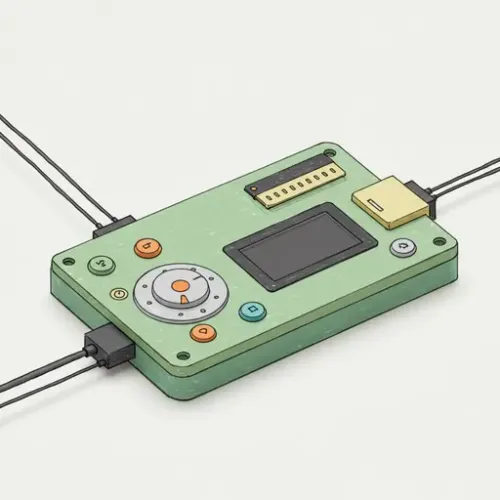
The Quest for Tactile and Reliable Smart Home Control
While voice assistants and smartphone apps offer unparalleled convenience, they often fall short in scenarios demanding immediate, tactile feedback or offline resilience. Think about needing to quickly arm your alarm, adjust the thermostat by a single degree, or cycle through lighting scenes during an internet outage. The latency, potential for misinterpretation, or reliance on network connectivity can be frustrating, or even critical. This article addresses that gap by guiding you through building a custom, highly responsive, and local control panel for Home Assistant using ESPHome, MQTT, and basic electronics.
Our goal is to create a physical interface that not only offers instant control but also displays relevant Home Assistant states, providing a robust alternative or complement to your existing smart home interaction methods. This approach is ideal for tech enthusiasts and practical homeowners alike, seeking stable, cost-efficient, and secure smart home solutions that just *work*.
Step-by-Step Setup: Building Your ESPHome Control Panel
1. Gather Your Components
To follow along, you'll need a few essential parts:
- ESP32 Development Board: (e.g., ESP32-WROOM-32 DevKitC) - Offers sufficient GPIOs and processing power.
- Matrix Keypad: (e.g., 4x4 membrane keypad) - For multiple button inputs.
- Rotary Encoder with Push Button: (e.g., KY-040) - For granular control and selection.
- OLED Display: (e.g., SSD1306 0.96 inch I2C OLED) - To display Home Assistant states.
- Breadboard & Jumper Wires: For prototyping.
- A 5V Power Supply.
2. Basic ESPHome Firmware Setup
First, set up your ESP32 with ESPHome. If you haven't already, install ESPHome via pip or use the Home Assistant ESPHome add-on.
Create a new device and choose your ESP32 board. Here's a basic `config.yaml` to get started:
# panel_config.yaml

esp32:
  board: nodemcu-32s
  framework:
    type: arduino

logger:

api:

otta:

wifi:
  ssid: "YOUR_WIFI_SSID"
  password: "YOUR_WIFI_PASSWORD"
  manual_ip:
    static_ip: 192.168.1.200 # Assign a static IP
    gateway: 192.168.1.1
    subnet: 255.255.255.0

mqtt:
  broker: 192.168.1.10 # Your MQTT Broker IP (e.g., Home Assistant's internal broker)
  username: "mqtt_user"
  password: "mqtt_password"
  topic_prefix: "homeassistant/panel"

enable_on_boot: True # Crucial for starting all components
Flash this initial configuration to your ESP32. Ensure it connects to your WiFi and MQTT broker.
3. Integrating a Matrix Keypad for Scene Selection
A matrix keypad is excellent for defining multiple fixed actions or scene selections. Wire your keypad to the ESP32 (e.g., 4x4 keypad typically has 8 pins: 4 rows, 4 columns). Map these to available GPIO pins.
# Add to panel_config.yaml

key_pad:
  id: my_keypad
  rows:
    - pin: GPIO19 # Row 1
    - pin: GPIO18 # Row 2
    - pin: GPIO5  # Row 3
    - pin: GPIO17 # Row 4
  columns:
    - pin: GPIO16 # Col 1
    - pin: GPIO4  # Col 2
    - pin: GPIO0  # Col 3
    - pin: GPIO2  # Col 4
  keys:
    - row: 0
      column: 0
      key: '1'
    - row: 0
      column: 1
      key: '2'
    # ... define all 16 keys
    - row: 3
      column: 3
      key: '#'
  on_key_press:
    - then:
        - mqtt.publish:
            topic: "homeassistant/panel/key/{{ key }}"
            payload: "PRESS"
        - logger.log: "Key {{ key }} pressed"
  on_key_release:
    - then:
        - mqtt.publish:
            topic: "homeassistant/panel/key/{{ key }}"
            payload: "RELEASE"
        - logger.log: "Key {{ key }} released"
In Home Assistant, you'll create automations that trigger when these MQTT messages are received:
# Home Assistant automations.yaml

- alias: 'Panel Key 1 Pressed - Activate Living Room Scene'
  trigger:
    platform: mqtt
    topic: 'homeassistant/panel/key/1'
    payload: 'PRESS'
  action:
    - service: scene.turn_on
      target:
        entity_id: scene.living_room_bright

- alias: 'Panel Key # Pressed - Toggle Alarm Arm'
  trigger:
    platform: mqtt
    topic: 'homeassistant/panel/key/#'
    payload: 'PRESS'
  action:
    - service: alarm_control_panel.alarm_arm_home
      target:
        entity_id: alarm_control_panel.alarmo
      data:
        code: "1234"
4. Implementing a Rotary Encoder for Granular Control
Rotary encoders are perfect for adjusting brightness, volume, or thermostat setpoints. Wire the two data pins (DT, CLK) and the switch pin (SW) to your ESP32.
# Add to panel_config.yaml

quadrature_rotary_encoder:
  name: "Panel Rotary Encoder"
  pin_a: GPIO32 # CLK
  pin_b: GPIO33 # DT
  id: panel_encoder
  on_value:
    - if:
        condition: "return id(panel_encoder).state > 0;" # If turned clockwise
        then:
          - mqtt.publish:
              topic: "homeassistant/panel/encoder/rotate"
              payload: "RIGHT"
          - logger.log: "Encoder Right"
    - if:
        condition: "return id(panel_encoder).state < 0;" # If turned counter-clockwise
        then:
          - mqtt.publish:
              topic: "homeassistant/panel/encoder/rotate"
              payload: "LEFT"
          - logger.log: "Encoder Left"
  # Reset value after processing, or allow it to accumulate for 'acceleration'
  # update_interval: 100ms # Only publish changes every 100ms
  filters:
    - calibrate_linear: # Ensures 1 increment per click
        - 0 -> 0
        - 2 -> 1 # Adjust based on your encoder's detent steps

binary_sensor:
  - platform: gpio
    pin:
      number: GPIO25 # SW (Button on encoder)
      mode: INPUT_PULLUP
    name: "Panel Encoder Button"
    on_press:
      - mqtt.publish:
          topic: "homeassistant/panel/encoder/button"
          payload: "PRESS"
      - logger.log: "Encoder Button Pressed"
Home Assistant automations to react to the encoder:
# Home Assistant automations.yaml

- alias: 'Adjust Light Brightness with Rotary Encoder'
  trigger:
    platform: mqtt
    topic: 'homeassistant/panel/encoder/rotate'
  action:
    - service: light.turn_on
      target:
        entity_id: light.living_room_lights
      data:
        # Assuming your lights accept brightness_step
        brightness_step: >
          {% if trigger.payload == 'RIGHT' %}
            10
          {% elif trigger.payload == 'LEFT' %}
            -10
          {% endif %}
        # Or use a script to adjust a number helper and then update the light

- alias: 'Toggle Media Playback with Encoder Button'
  trigger:
    platform: mqtt
    topic: 'homeassistant/panel/encoder/button'
    payload: 'PRESS'
  action:
    - service: media_player.media_play_pause
      target:
        entity_id: media_player.spotify_speaker
5. Adding an OLED Display for Real-Time Feedback
An OLED display provides vital context directly on the panel. Wire it via I2C (SDA, SCL, VCC, GND). We'll use a `text_sensor` in ESPHome to display information sent from Home Assistant via MQTT.
# Add to panel_config.yaml

i2c:
  sda: GPIO21
  scl: GPIO22
  id: bus_i2c

display:
  - platform: ssd1306_i2c
    id: panel_oled
    address: 0x3C # Common address, check your specific module
    i2c_id: bus_i2c
    pages:
      - id: main_page
        lambda: |
          it.printf(0, 0, id(itc_font), "HVAC: %s", id(hvac_mode_text).state.c_str());
          it.printf(0, 10, id(itc_font), "Temp: %.1f°C", id(current_temp_text).state.c_str());
          it.printf(0, 20, id(itc_font), "Set: %.1f°C", id(target_temp_text).state.c_str());

font:
  - file: "OpenSans-Regular.ttf"
    id: itc_font
    size: 10

# These text sensors will receive updates from Home Assistant
text_sensor:
  - platform: mqtt_subscribe
    name: "HVAC Mode Display"
    topic: "homeassistant/panel/display/hvac_mode"
    id: hvac_mode_text
  - platform: mqtt_subscribe
    name: "Current Temp Display"
    topic: "homeassistant/panel/display/current_temp"
    id: current_temp_text
  - platform: mqtt_subscribe
    name: "Target Temp Display"
    topic: "homeassistant/panel/display/target_temp"
    id: target_temp_text
To update the display from Home Assistant, use the `mqtt.publish` service:
# Home Assistant automations.yaml

- alias: 'Update Panel HVAC Display'
  trigger:
    - platform: state
      entity_id: climate.main_thermostat
      attribute: hvac_mode
    - platform: state
      entity_id: climate.main_thermostat
      attribute: current_temperature
    - platform: state
      entity_id: climate.main_thermostat
      attribute: temperature
  action:
    - service: mqtt.publish
      data_template:
        topic: "homeassistant/panel/display/hvac_mode"
        payload: "{{ states('climate.main_thermostat') }}"
    - service: mqtt.publish
      data_template:
        topic: "homeassistant/panel/display/current_temp"
        payload: "{{ state_attr('climate.main_thermostat', 'current_temperature') | float | round(1) }}"
    - service: mqtt.publish
      data_template:
        topic: "homeassistant/panel/display/target_temp"
        payload: "{{ state_attr('climate.main_thermostat', 'temperature') | float | round(1) }}"
Troubleshooting Common Issues
- ESP Device Not Connecting/Showing Up: Double-check your `wifi` and `mqtt` credentials in `panel_config.yaml`. Ensure your MQTT broker is running and accessible on the specified IP. Check ESPHome logs via the web interface or serial console for connection errors.
- Keypad/Encoder Input Not Registering:
- Wiring: Verify all pins are connected correctly. A common mistake is using the wrong GPIO number or a pin that's input-only (e.g., some ESP32 pins are input-only or have specific boot functionalities).
- `pull_mode`: For buttons/encoders, `INPUT_PULLUP` is often necessary if you're wiring normally-open buttons to ground.
- Debouncing: Add `filters: - debounce: 50ms` to your binary sensors if you experience multiple triggers for a single press.
- ESPHome Logs: Use `logger.log` actions (as shown in examples) to confirm if ESPHome is detecting the input events locally.
- OLED Display Blank or Garbled:
- I2C Address: The default is `0x3C`, but some modules use `0x3D`. Use an I2C scanner sketch (available online) to find the correct address for your display.
- Wiring: Ensure SDA, SCL, VCC, GND are correctly connected.
- `lambda` Errors: If your display lambda has syntax errors, it won't render. Check the ESPHome logs for `lambda` compilation issues. Start with a very simple `it.print()` to test.
- Font Issues: Ensure the font file is correctly placed alongside your YAML config or available to ESPHome.
- Home Assistant Not Reacting: Verify your MQTT topics in Home Assistant automations exactly match what ESPHome is publishing. Use an MQTT client (like MQTT Explorer) to monitor `homeassistant/#` to see if messages are being sent and received correctly.
Advanced Configuration & Optimization
ESPHome API vs. MQTT for Data Exchange
While MQTT is excellent for publishing events from the ESP device to Home Assistant, ESPHome's native API is often preferred for sending states *to* the ESP device (e.g., for display updates or changing internal parameters). The API offers faster, more reliable communication and automatic discovery.
To use the API for display updates, instead of `text_sensor` with `mqtt_subscribe`, you'd define a `text_sensor` *without* a platform in ESPHome, and then update it directly from Home Assistant's `esphome.update_text_sensor` service:
# panel_config.yaml (ESPHome)

text_sensor:
  - platform: custom
    lambda: 'return {};'
    name: "HVAC Mode API Display"
    id: hvac_mode_api_text
    update_interval: 10000ms # Not strictly needed as it's updated via API

# Home Assistant service call
# service: esphome.panel_hvac_mode_api_text_update
# data:
#   value: "Heat"
The service name will be `esphome.
Local Logic & Global Variables
For critical automations or to reduce reliance on Home Assistant, you can implement logic directly on the ESP32 using ESPHome's `lambda` functions and `globals`. For instance, cycling through HVAC modes or light brightness levels can be handled locally:
# Add to panel_config.yaml

global:
  - id: current_hvac_mode_index
    type: int
    restore_value: True
    initial_value: '0'

# Assuming you have a list of modes
# binary_sensor for a button press to cycle modes
binary_sensor:
  - platform: gpio
    pin: GPIO27
    name: "Cycle HVAC Mode Button"
    on_press:
      - lambda: |
          int mode_count = 3; // e.g., Off, Heat, Cool
          id(current_hvac_mode_index) = (id(current_hvac_mode_index) + 1) % mode_count;
          if (id(current_hvac_mode_index) == 0) {
            // Publish to HA or call API to set to 'off'
            id(hvac_mode_api_text).publish_state("Off");
          } else if (id(current_hvac_mode_index) == 1) {
            id(hvac_mode_api_text).publish_state("Heat");
          } else if (id(current_hvac_mode_index) == 2) {
            id(hvac_mode_api_text).publish_state("Cool");
          }
          // You'd also publish an MQTT message for Home Assistant to react and actually change the climate entity
          mqtt::publish("homeassistant/panel/hvac/set_mode", id(hvac_mode_api_text).state);
        - logger.log: "HVAC Mode cycled locally"
This ensures that even if Home Assistant or the network is down, the panel can still cycle through modes and display its current internal state. Home Assistant can then pick up the `hvac/set_mode` MQTT message when connectivity returns.
Real-World Example: The 'Smart Climate Command Center'
Imagine a dedicated panel in your living room for climate control. Here's how it integrates the components:
- Keypad '1' (Heat): Activates `climate.main_thermostat` to `heat` mode.
- Keypad '2' (Cool): Sets `climate.main_thermostat` to `cool` mode.
- Keypad '3' (Auto): Switches to `auto` mode.
- Keypad '0' (Off): Turns the thermostat off.
- Rotary Encoder: Adjusts the `target_temperature` of `climate.main_thermostat` in 0.5°C increments.
- Encoder Button: Toggles a `fan_mode` (e.g., auto/on/circulate).
- OLED Display: Shows `climate.main_thermostat`'s current `hvac_mode`, `current_temperature`, and `temperature` (target).
This setup provides an intuitive, robust physical interface that keeps critical climate control local and responsive, even when your phone isn't handy or the network is flaky.
Best Practices and Wrap-up
Building custom control panels provides immense flexibility and reliability. To ensure your system remains scalable, secure, and maintainable, consider these best practices:
- Security: Always use strong passwords for your ESPHome API and MQTT broker. If exposing anything externally, use TLS/SSL for MQTT and ensure your network is properly firewalled.
- Reliability: For critical functions, leverage ESPHome's local `lambda` logic as much as possible to ensure basic functionality even if Home Assistant is offline. Assign static IPs to your ESP devices.
- Maintainability: Keep your ESPHome YAML configurations in a version control system (like Git). Utilize ESPHome's Over-The-Air (OTA) updates for easy firmware upgrades without physical access.
- Scalability: Adopt a clear and consistent MQTT topic structure (e.g., `homeassistant/panel/key/1`, `homeassistant/panel/display/hvac_mode`). This makes it easier to add more panels or devices in the future and manage automations.
- Feedback: Beyond the OLED, consider adding subtle LED indicators or a small buzzer to your panel to confirm actions or provide status.
By investing a little time in a custom ESPHome control panel, you're not just adding another gadget to your smart home; you're building a truly robust, reliable, and user-friendly interface that puts critical control directly at your fingertips. Experiment with different inputs and outputs to create the perfect tactile experience for your specific needs.
NGC 224
Author bio: DIY Smart Home Creator
